Create staff accounts
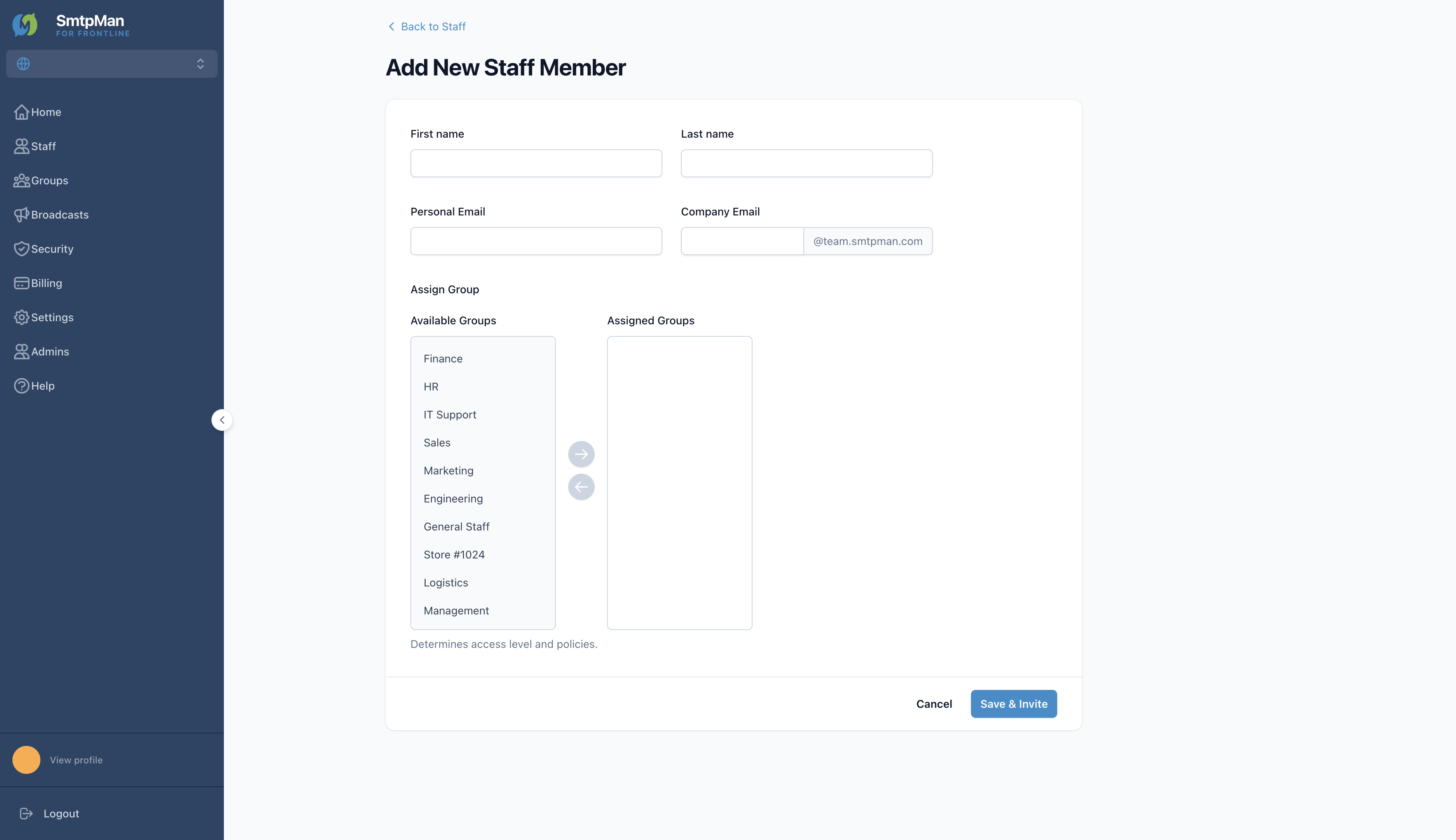
Open Staff → Staff Management. Use Add Staff for one person, or Import CSV for bulk invites.
Staff account admin steps
- Add Staff — First name, Last name, Personal Email
- Company Email — prefix + team domain (auto-fills from name)
- Assign Group — move groups from Available to Assigned
- Save & Invite — sends the activation path to Personal Email
Import CSV: download the template, upload a CSV (up to 10MB), preview Name / Personal Email / Company Email / Status / Result, then Confirm Import.
Edit access and profile fields
Open a staff name to reach staff details. Contact emails are shown for reference. Use Group Assignment (Available / Assigned) and Save Assignments to change which groups the person belongs to.
- List columns: Name, Personal Email, Company Email, Group(s), Status
- On Pending Invitation, use Resend or Cancel
- Recent activity appears under Recent Audit Log on the detail page
Change account state in the product
Activated accounts. Row action: Archive. Detail shows Active - Billable and Archive User.
Invited but not activated yet. Resend or Cancel the invitation.
Preserved accounts. Row action: Activate to restore access.
Seasonal archive and reactivation playbooks (when to archive, how to communicate returns) live in the lifecycle guides—not on this Help page.