Supported clients and protocols
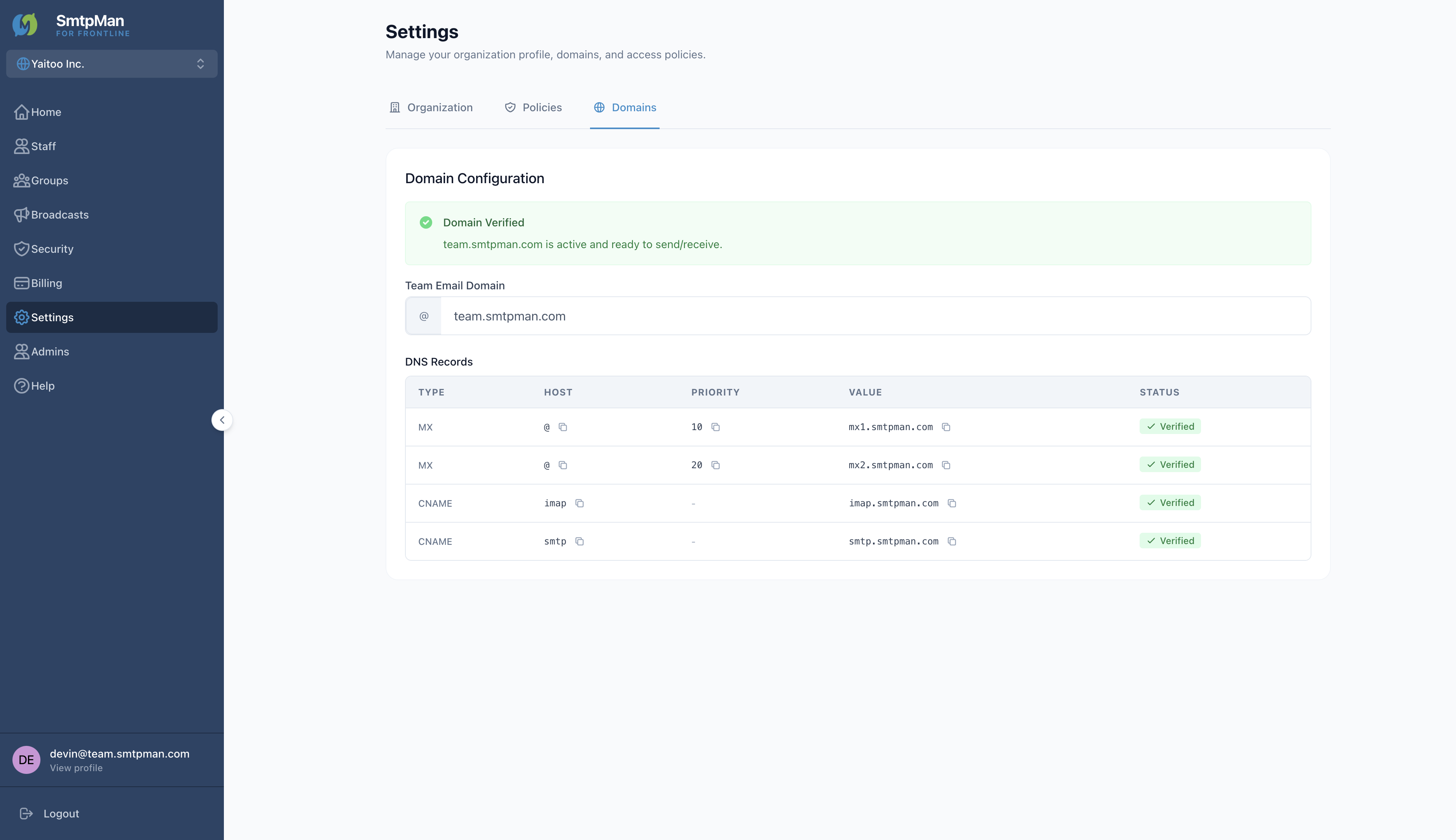
Staff mailboxes connect with IMAP (receive) and SMTP (send). Use any client that supports those protocols with TLS—for example Apple Mail, Outlook, Gmail (IMAP “Other”), or Thunderbird. There is no separate Connection page in the admin dashboard; hostnames also appear as DNS CNAME targets under Settings → Domains.
IMAP
Sync inbox and folders from SmtpMan.
SMTP
Send mail with the same account credentials.
Security prerequisites
- Staff invitation accepted and password set
- Employee email domain verified (MX + IMAP/SMTP CNAMEs) — see Help: domain and DNS
- Client TLS enabled on the ports below
- Inbound allowlisting when needed — see Help: security
Connection settings
Use these SmtpMan values in the email client. Username is the full staff email address. Password is the password set when the staff account was activated.
Verified: 2026-07-22 · values from staff activation / Settings → Domains DNS targets
SmtpMan client connection settings table
| Protocol | Server host | Port | TLS |
|---|---|---|---|
| IMAP (receive) | imap.smtpman.com | 993 | SSL |
| SMTP (send) | smtp.smtpman.com | 465 | SSL |
Troubleshoot common errors
Authentication failed
Confirm the full email address and the activation password.
Cannot connect / timeout
Check hosts (imap.smtpman.com / smtp.smtpman.com), ports 993/465, and TLS. Some networks block outbound mail ports.
Domain not ready
Verify MX and IMAP/SMTP CNAMEs under Help: domain and DNS. Keeping frontline mail off the primary domain is covered in Separate frontline employee email from your primary domain.